
What Actually Changed — And Whether It Matters for Your Work
Every AutoCAD release brings a list of updates, but not every update changes how you actually work day to day. If you’re deciding whether to upgrade from AutoCAD 2025 to 2026 — or you’re a student wondering whether it’s worth learning on the newest version — this guide breaks down what’s genuinely different, not just what’s on the release notes.
Performance: The Biggest Practical Difference
The most noticeable change in AutoCAD 2026 isn’t a new tool — it’s speed. Based on testing shared by Autodesk partners, 2D and 3D files now open up to 11 times faster compared to AutoCAD 2025, with startup times also significantly improved. For anyone opening dozens of drawings a day — which is most professional AutoCAD users — this adds up to real time saved, even though it’s not a flashy new feature.
Smarter Smart Blocks
Smart Blocks, introduced a couple of versions ago, get a meaningful upgrade in AutoCAD 2026. Detection, search, and conversion of identical or near-identical geometry is now more accurate — useful when cleaning up imported drawings or standardizing blocks across a large project. A new review toolbar also gives more control over refining results before committing changes, rather than accepting an all-or-nothing block conversion.
Markup Assist Gets AI-Powered
This is arguably the standout addition in AutoCAD 2026: Markup Assist can now detect and execute certain instructions written directly in markup text — recognizing commands like “MOVE,” “COPY,” or “DELETE” from handwritten or typed markups imported from PDFs, and applying them to your drawing automatically. Combined with improved detection of text edits and strikethroughs from paper or PDF markups, this meaningfully speeds up the tedious process of manually re-entering feedback from a marked-up drawing.
Activity Insights and Connected Support Files
AutoCAD 2026 expands Activity Insights with a “What’s Changed” view, giving a clear breakdown of what happened during an editing session — useful for teams tracking who changed what, especially on shared or collaborative projects. Connected Support Files, meanwhile, let teams share support files like Xrefs, images, and fonts through Autodesk Docs, reducing the broken-file-path headaches that come with traditional shared-drive setups.
Centerline and Centermark Layer Control
A smaller but genuinely useful change for drafters: the new CENTERLAYER system variable lets you assign layers directly within centerline and centermark commands, giving more precise control over drawing organization — a detail that matters more than it sounds once you’re managing complex, multi-layer drawings.
AutoCAD Foundations: A New Way to Learn
Alongside the software update, Autodesk introduced “AutoCAD Foundations” — a redesigned learning series covering the interface, basic drawing and modification commands, and annotation fundamentals. This is aimed at both brand-new users and existing users wanting a structured refresher, and it reflects a broader shift toward guided, in-context learning rather than isolated help documentation.
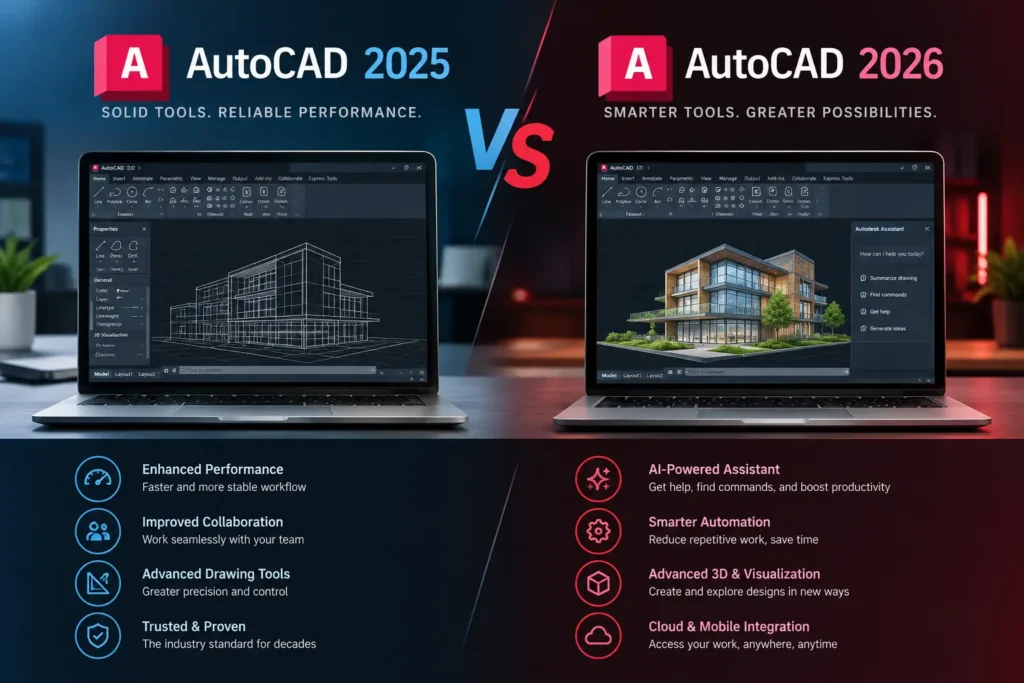
AutoCAD 2026 vs 2025: Quick Comparison
Area | AutoCAD 2025 | AutoCAD 2026 |
File Open Speed | Baseline | Up to 11x faster (2D/3D) |
Smart Blocks | Basic detection | Improved detection + review toolbar |
Markup Assist | Manual markup review | AI-detected commands (MOVE/COPY/DELETE) |
Activity Insights | Basic activity log | "What's Changed" detailed breakdown |
Support File Sharing | Manual/shared drive | Connected Support Files via Autodesk Docs |
Centerline/Centermark | Standard layer behavior | Direct layer assignment (CENTERLAYER) |
Should You Upgrade?
If you work with large, complex drawings regularly, the performance improvement alone is worth the upgrade — faster file opening compounds into real hours saved over a working month. If your work involves reviewing a lot of markup feedback from PDFs or paper redlines, the AI-powered Markup Assist changes are a genuine workflow improvement, not just a nice-to-have.
If you’re a student or new learner deciding which version to train on, there’s a simpler answer: learn on the current version. Employers expect familiarity with modern AutoCAD workflows, and the core commands and fundamentals you learn transfer directly across versions — so there’s no real downside to starting on 2026 rather than an older release.
Frequently Asked Questions
A: No — the core drafting commands, interface layout, and fundamentals remain the same. The changes in 2026 are additions and refinements (performance, Smart Blocks, Markup Assist), not a redesign of how AutoCAD works.
A: It significantly speeds up markup processing, but reviewing AI-detected changes before finalizing them is still good practice, especially on drawings with dense or ambiguous handwritten markups.
A: File compatibility across recent AutoCAD versions is generally reliable, but always confirm with collaborators using older versions, since some newer features may not display or function the same way in older releases.
A: Yes — there’s no advantage to learning on an older version. Starting on the current release means you’re already familiar with the workflows and tools you’ll actually use on the job.
A: Yes — our AutoCAD course is kept current with the latest version, including the workflow and productivity updates covered in this comparison.
A: Course fees vary depending on batch and mode (online/offline). Contact us for exact pricing for your preferred schedule.
Learn AutoCAD on the Current Version — The Right Way
Whether you’re upgrading your skills or starting fresh, our hands-on AutoCAD course in Ameerpet, Hyderabad is kept current with the latest AutoCAD release, so you’re learning exactly what today’s employers expect.